Projects
Gather the models for an army, a warband or a terrain board in one place, and see it come together.
A project is whatever you are painting towards: an army for the next campaign, a skirmish warband, a board's worth of terrain, a commission for a friend. It holds the models for it, the colour scheme, photos and progress notes, so the project page is where you will spend most of your time.
Create a project
- Open Projects and press New project.
- Give it a name. Everything else is optional: the game system, a status, a target date, and notes.
- Press save. The project opens, ready for its first units.
On the desk, on hold, or done
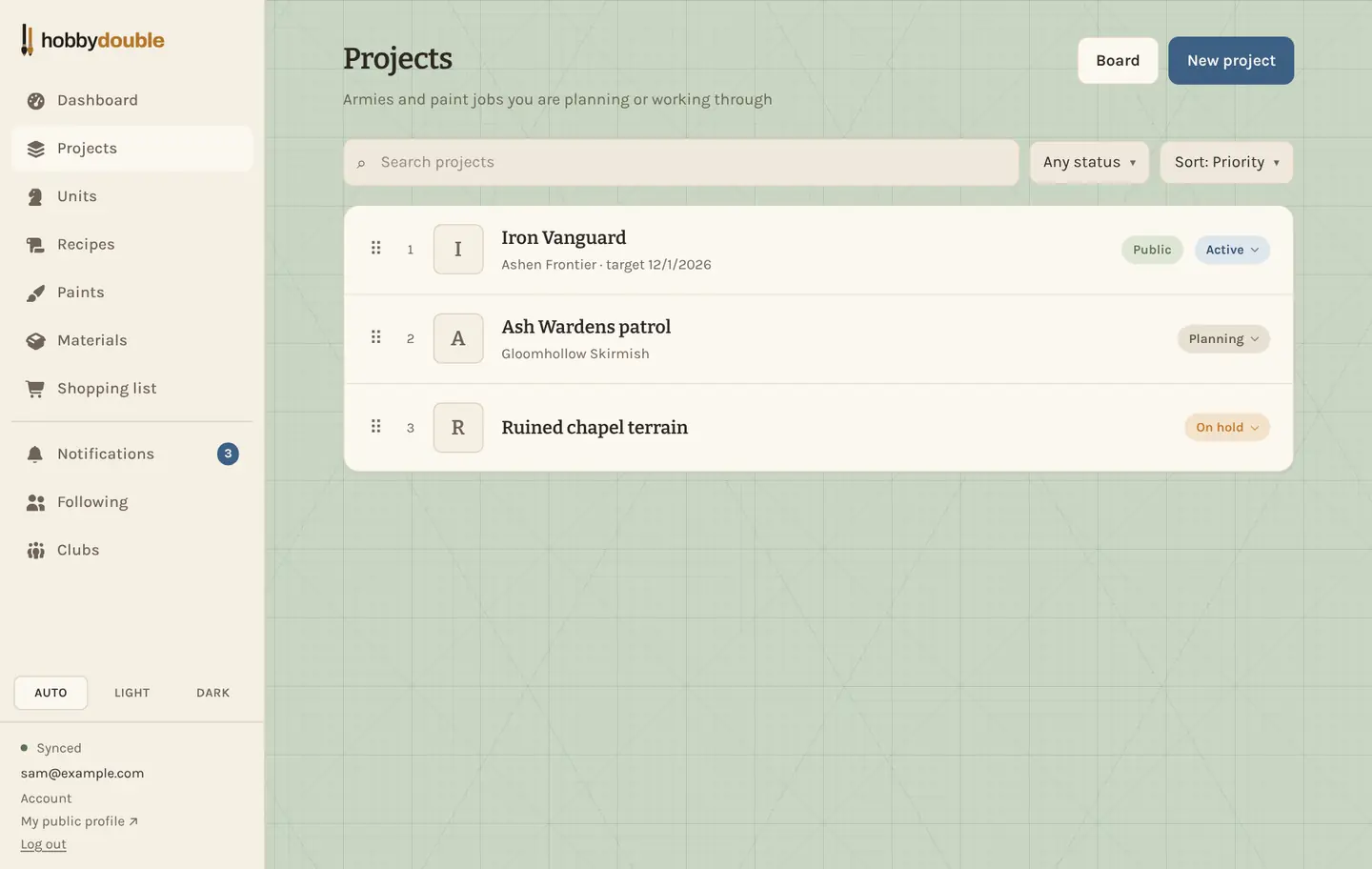
A project is Planning, Active, On hold, Complete or Abandoned. Tap the coloured status badge under the project's name to change it. Board at the top of the Projects list shows every project in columns by status; drag a card to another column to move it.
The project page
The project page has three tabs:
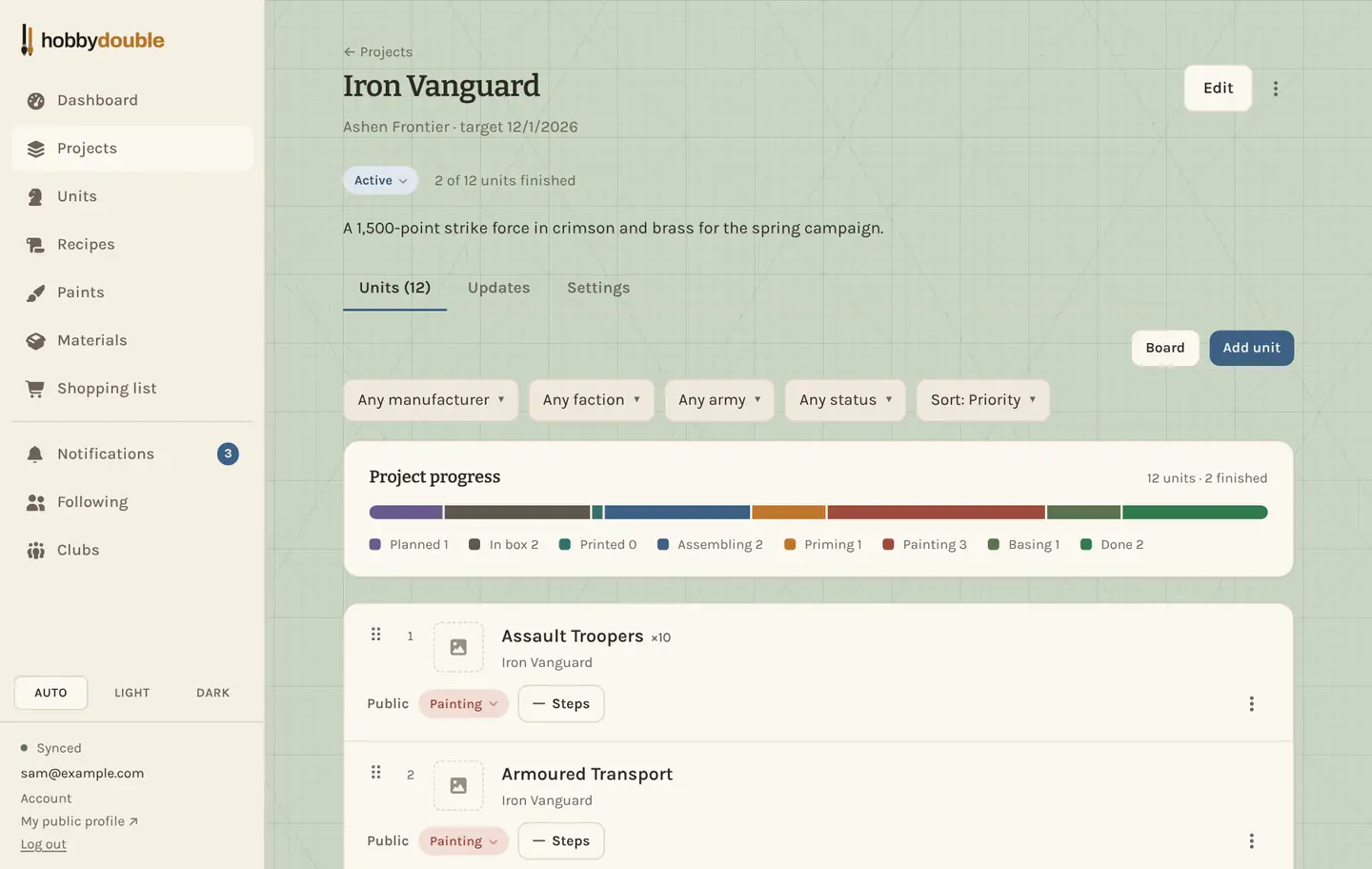
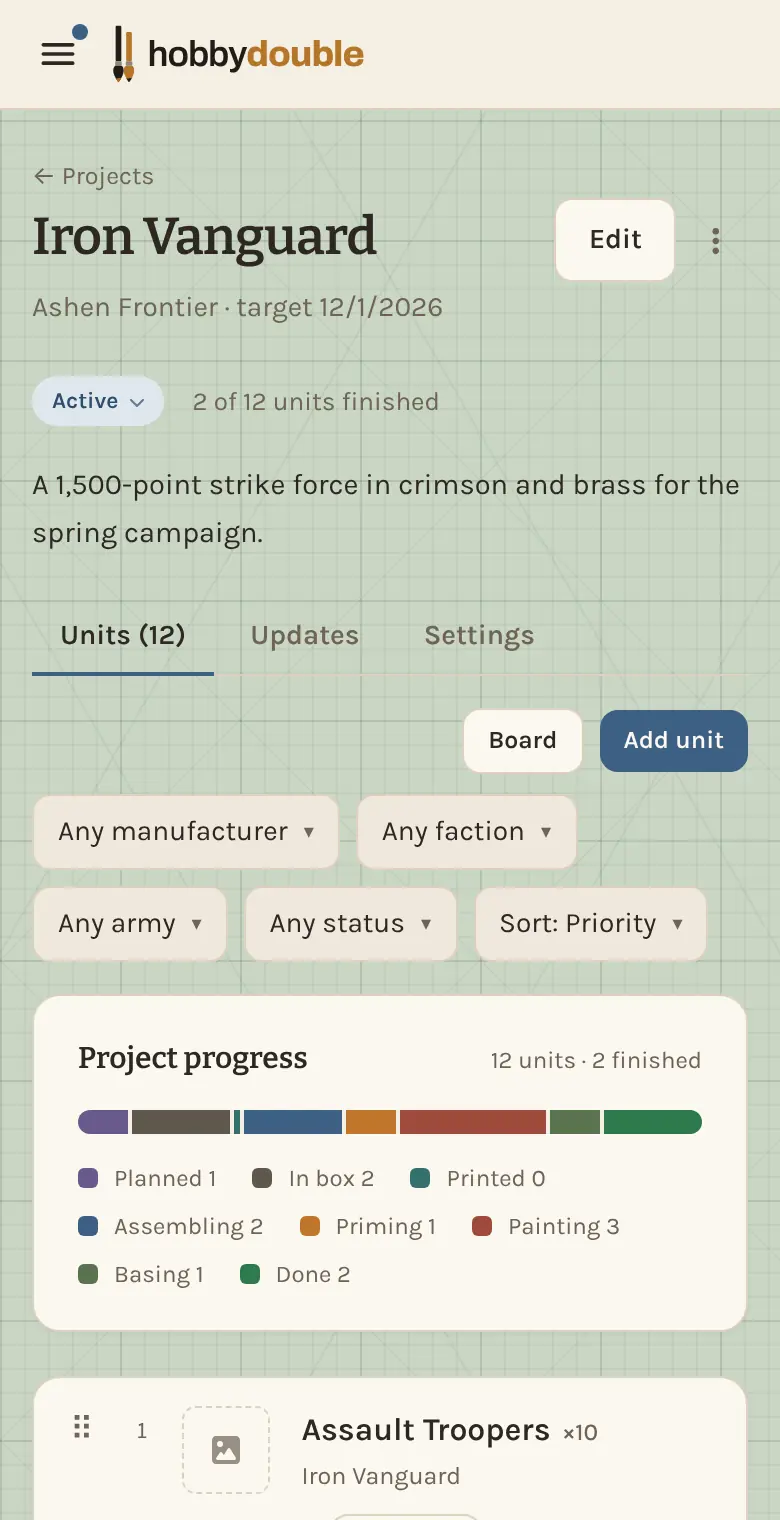
- Units: every unit in the project, with a progress bar showing how many are at each stage. Add units here with Add unit.
- Updates: short posts about how the project is going. See Project updates.
- Settings: who the project is shared with, and whether it appears on your public profile. See Sharing a project and Your public profile.
Pick what to paint next
Put your projects, and the models inside each one, in the order you want to paint them. Sort the list by Priority and drag rows up and down by the ⠿ handle: number 1 is the next thing on the desk. Anything you have not dragged sits underneath, newest first.
The board
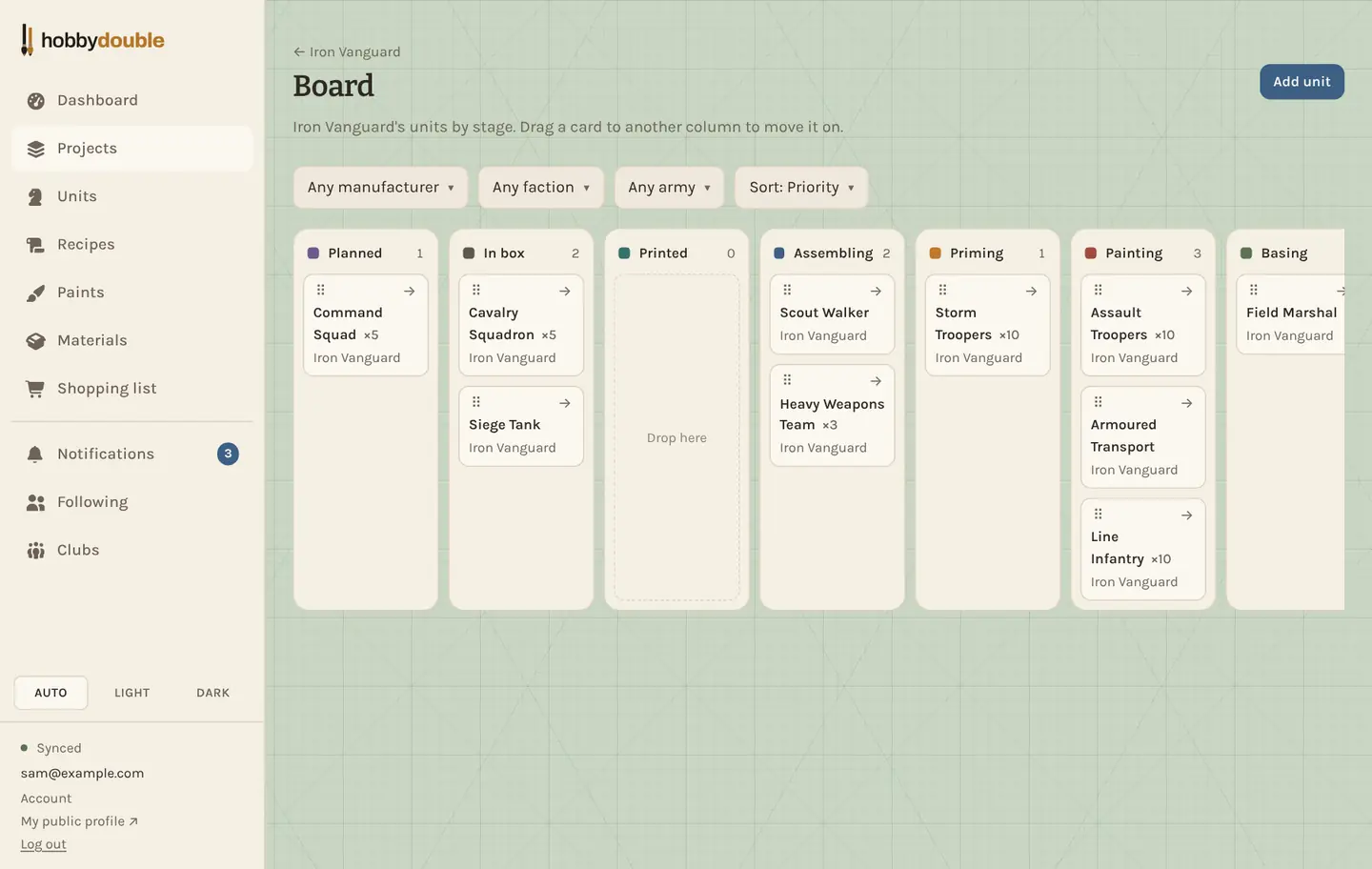
Board on the Units tab lays the army out like a painting table: one column per stage, from Planned to Done. When a squad comes off the priming spray, drag its card to the next column, or tap the arrow on the card to move it on one stage.
The project theme
A theme is the colour scheme for the whole project, written as a recipe: the steps and paints that make your army look like itself. Under Theme on the project page, press Add theme to write one, or From library to start from a recipe you already have. See Recipes and paint steps.
Photos
Drop photos onto the Photos box, or press Add photo. On a phone you can take a picture straight from the camera. Photos can also be picked from Google Photos once you connect it.
Screenshots show a sample account. Every name in them, from units and factions to paint brands and shops, is made up for these guides.