Recipes and paint steps
Write down how you painted it, so the next squad matches the last one.
Six months after the first squad, nobody remembers which red went on the armour or how thin the wash was. A recipe is where you write it down: each step has what you did (basecoat, wash, edge highlight and so on), the paint or material, and notes such as how much you thinned it. Your recipes live on the Recipes page.
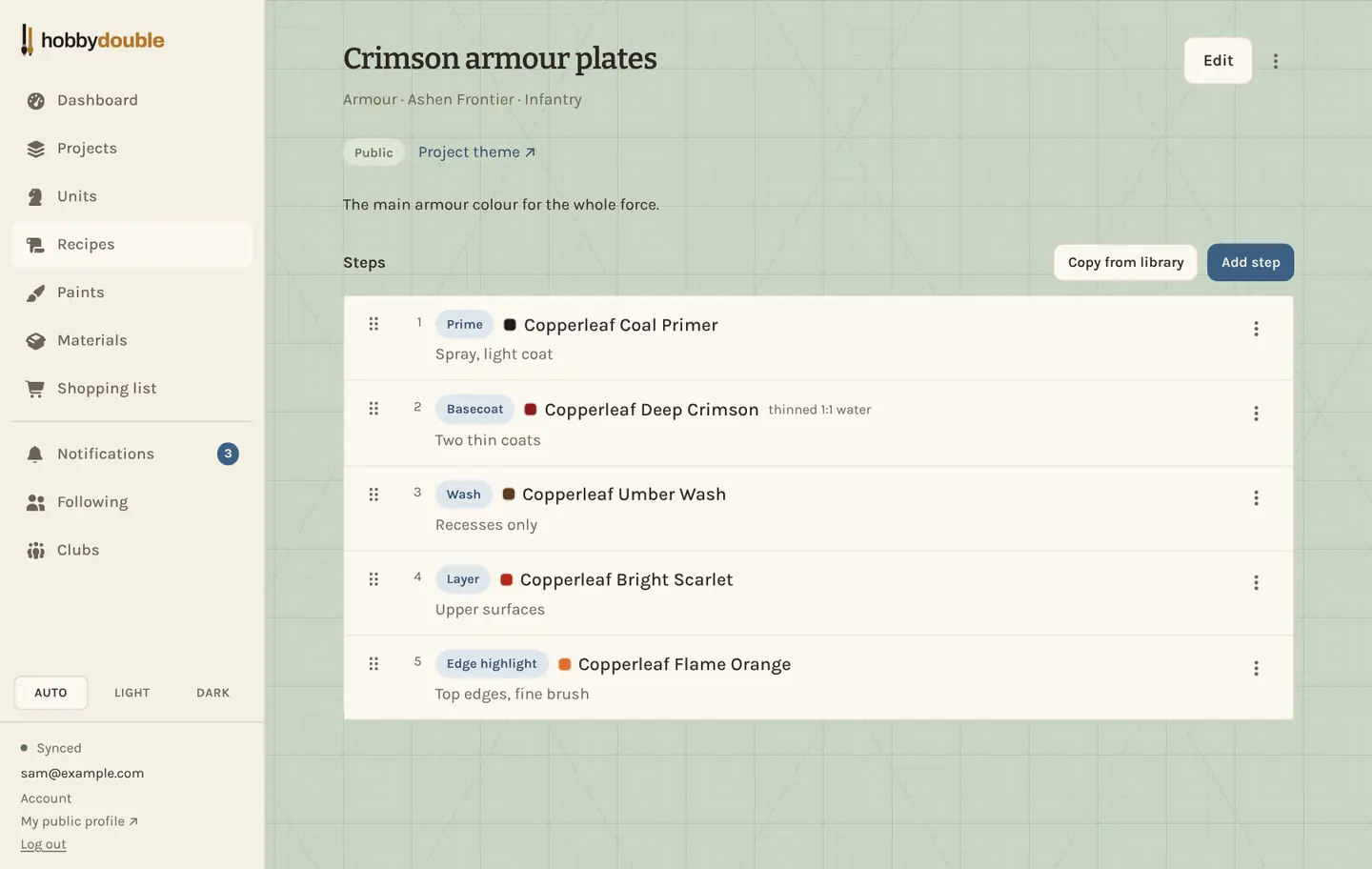
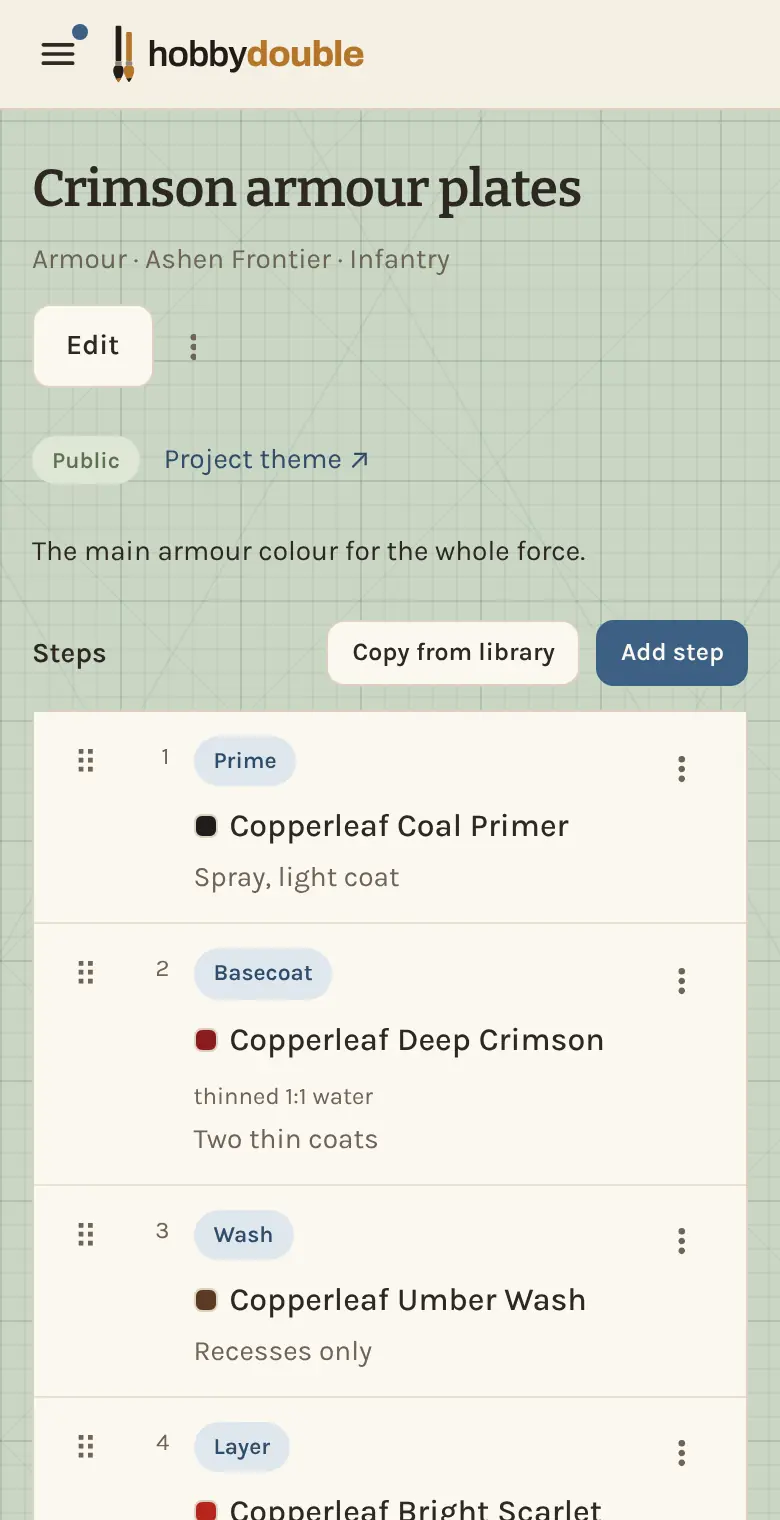
Three places a recipe is used
- In your library: a reusable scheme, such as "Weathered brass trim", that is not tied to anything.
- As a project's theme: the colour scheme for a whole project. It shows on the project page and, if you choose, on the project's public page.
- As a unit's steps: how one unit was painted, opened from the unit's Steps button.
Write a recipe
- On Recipes, press New recipe. Give it a name and, optionally, the game system, the type of unit and the part it covers (armour, skin, bases).
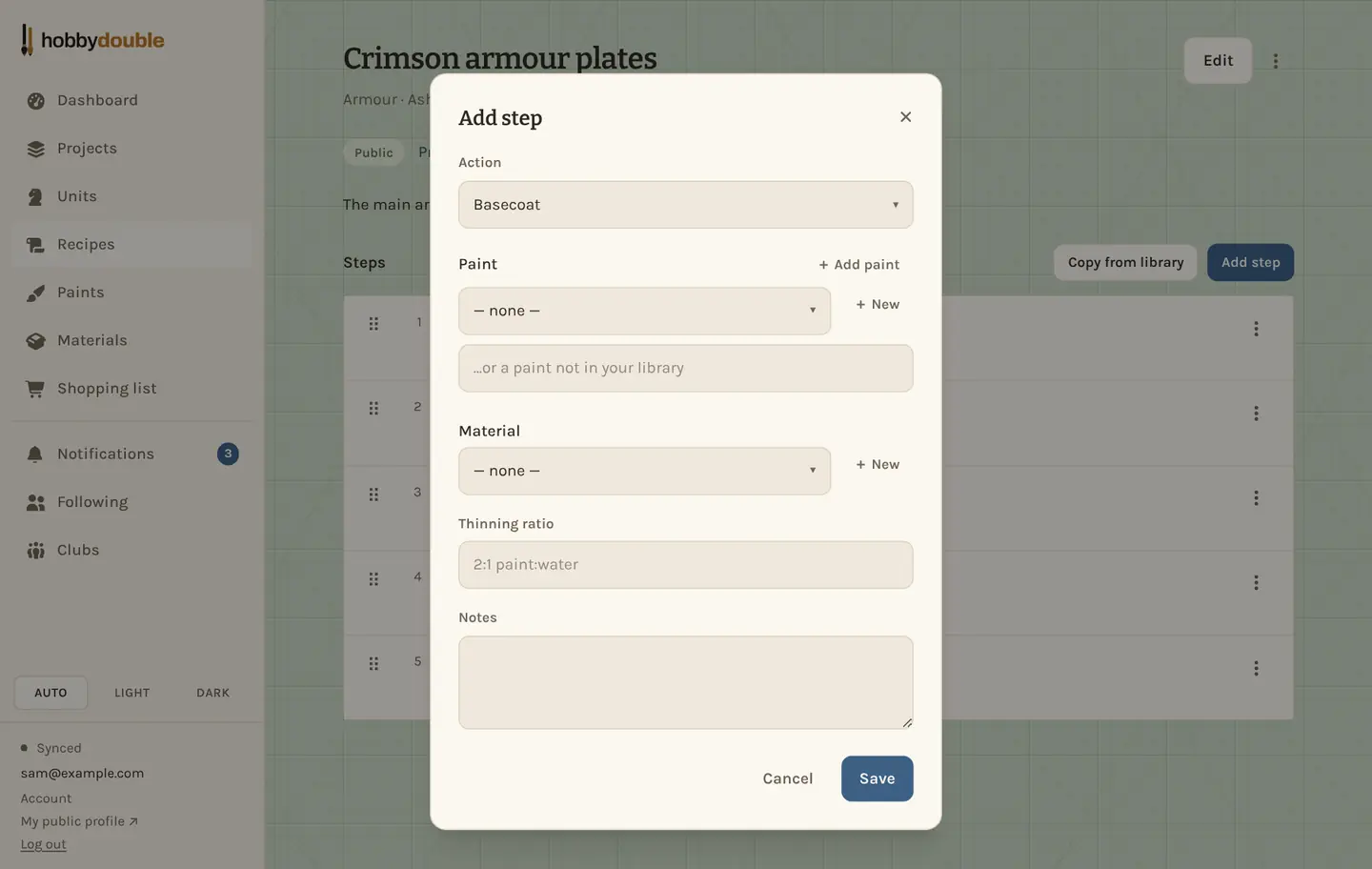
- Press Add step. Choose the action, then the paint from your paint rack. If the paint is not in your rack yet, type its name in the box underneath, or press + New to add it to your rack there and then.
- Add a thinning ratio and notes if they help, then save. Repeat for each step.
Mixes
If a step uses two or more paints mixed together, press + Add paint in the step form to add another paint to the mix, and give each one a percentage.
Reorder and reuse steps
Drag a step by its ⠿ handle to change the order. Copy from library adds the steps of another recipe after the ones already there, which is a quick way to build a unit's steps from your usual armour and base recipes.
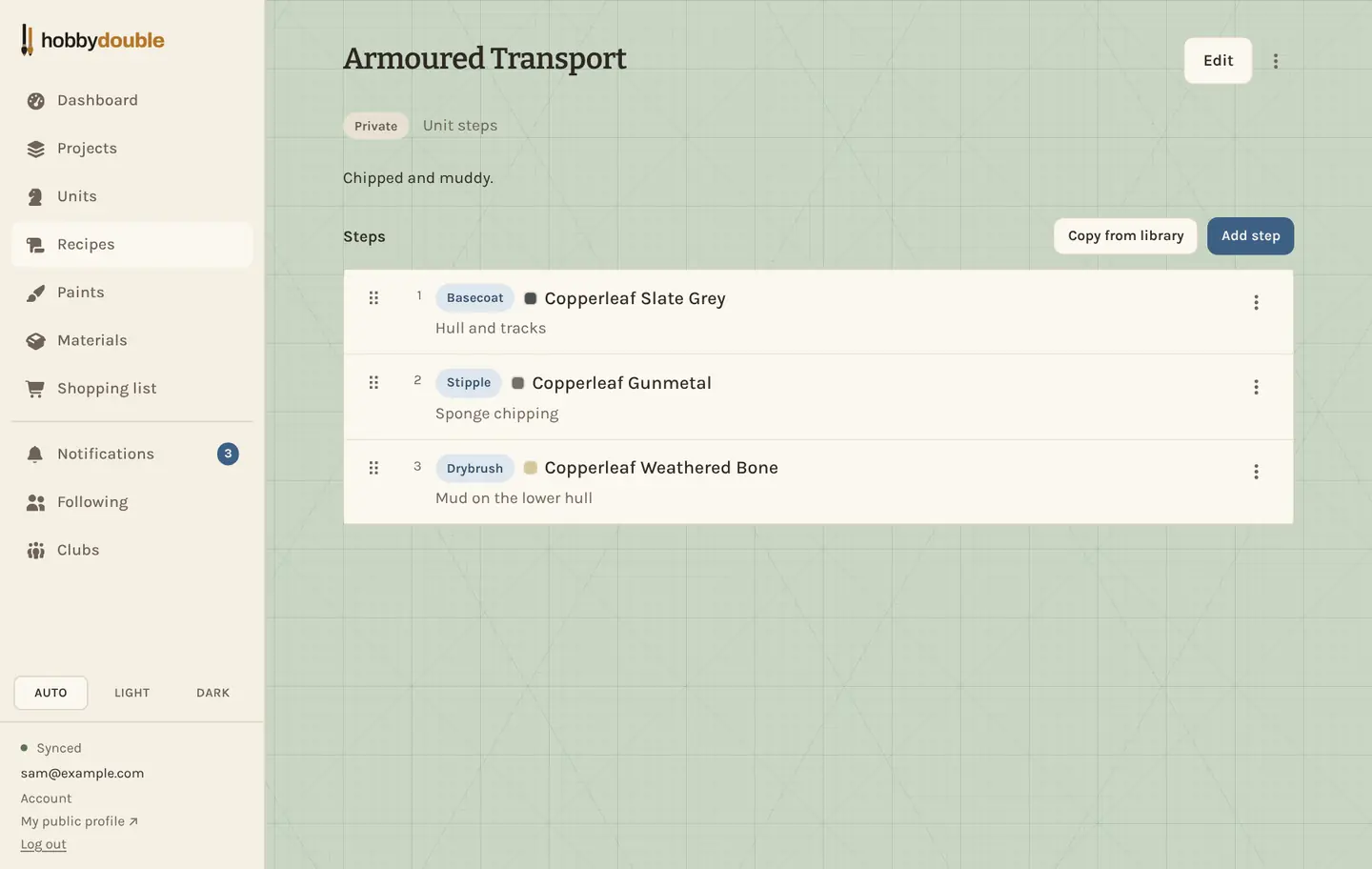
Who can see a recipe
A recipe is Private (only you, and the people on its project), Unlisted (anyone with the link) or Public (shared with other painters in the recipe library). Change it with Edit on the recipe.
Screenshots show a sample account. Every name in them, from units and factions to paint brands and shops, is made up for these guides.