Paints and materials
Know which pots you own, which are drying out, and which drawer they are in.
Paints is your paint rack and Materials is everything else on the desk: glue, basing, brushes, magnets, filler. Both work the same way, and both feed the shopping list.
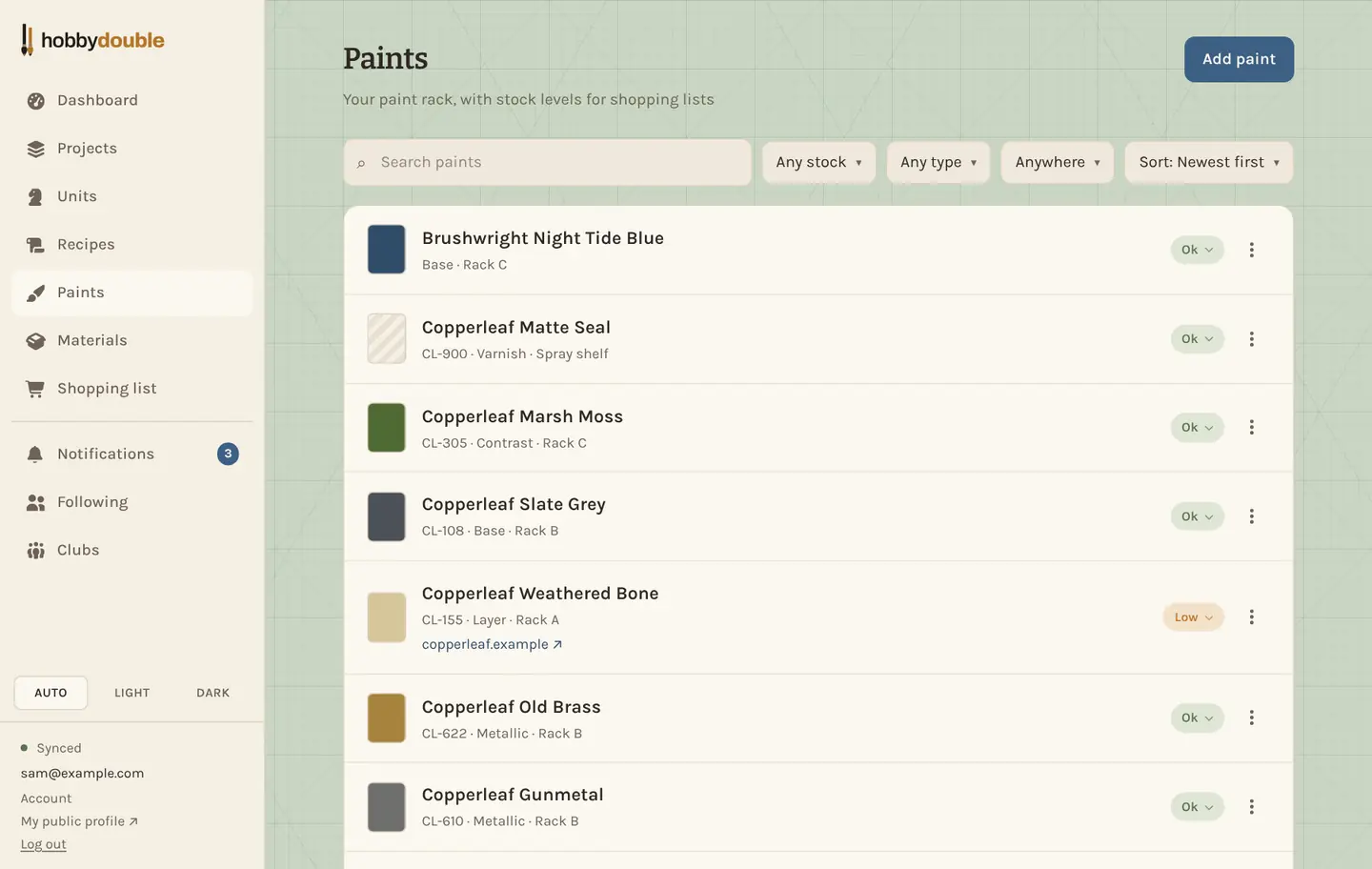
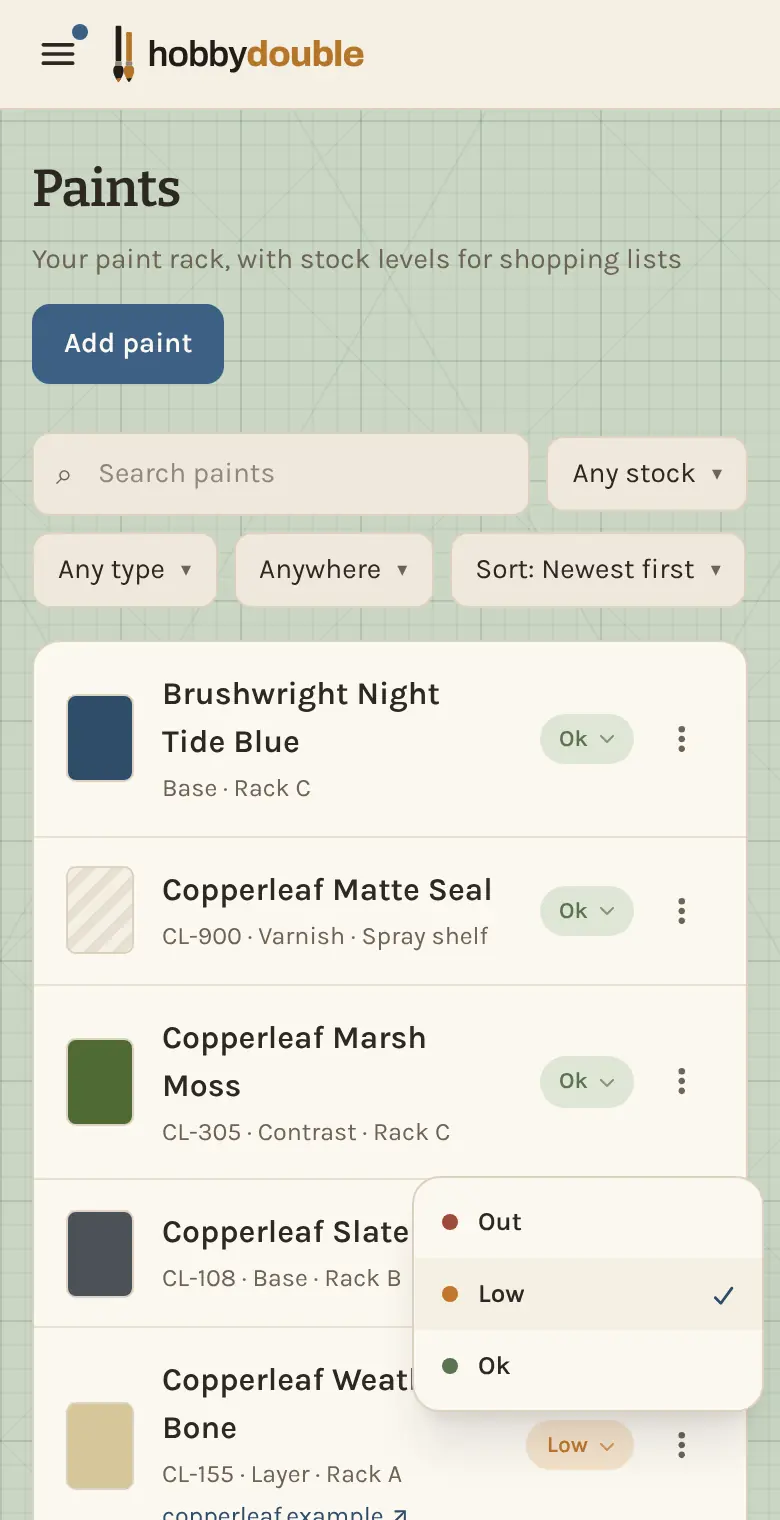
Add a paint
- Press Add paint.
- Start typing in Find in catalogue to fill the form from the built-in paint catalogue, or fill it in yourself: brand, name, product code and type.
- Set the colour, so the pot shows as a swatch here and in your recipes. Add where you keep it (a rack, a drawer) and a link to the shop you reorder from.
Stock levels
Every paint and material is Ok, Low or Out. Tap the badge at the end of a row to change it as you use things up. Anything Low or Out goes on your shopping list automatically.
Tap a paint's colour swatch to change its colour without opening the whole form.
Find a pot
Search by name, or filter by stock, by type (base, layer, wash, metallic and the rest) or by where it is kept. Anywhere narrows the list to one shelf or drawer.
Materials
Materials work the same way: a name, who makes it, a category such as Basing or Glue, a stock level, a storage spot and a shop link. A recipe step can name a material as well as, or instead of, a paint.
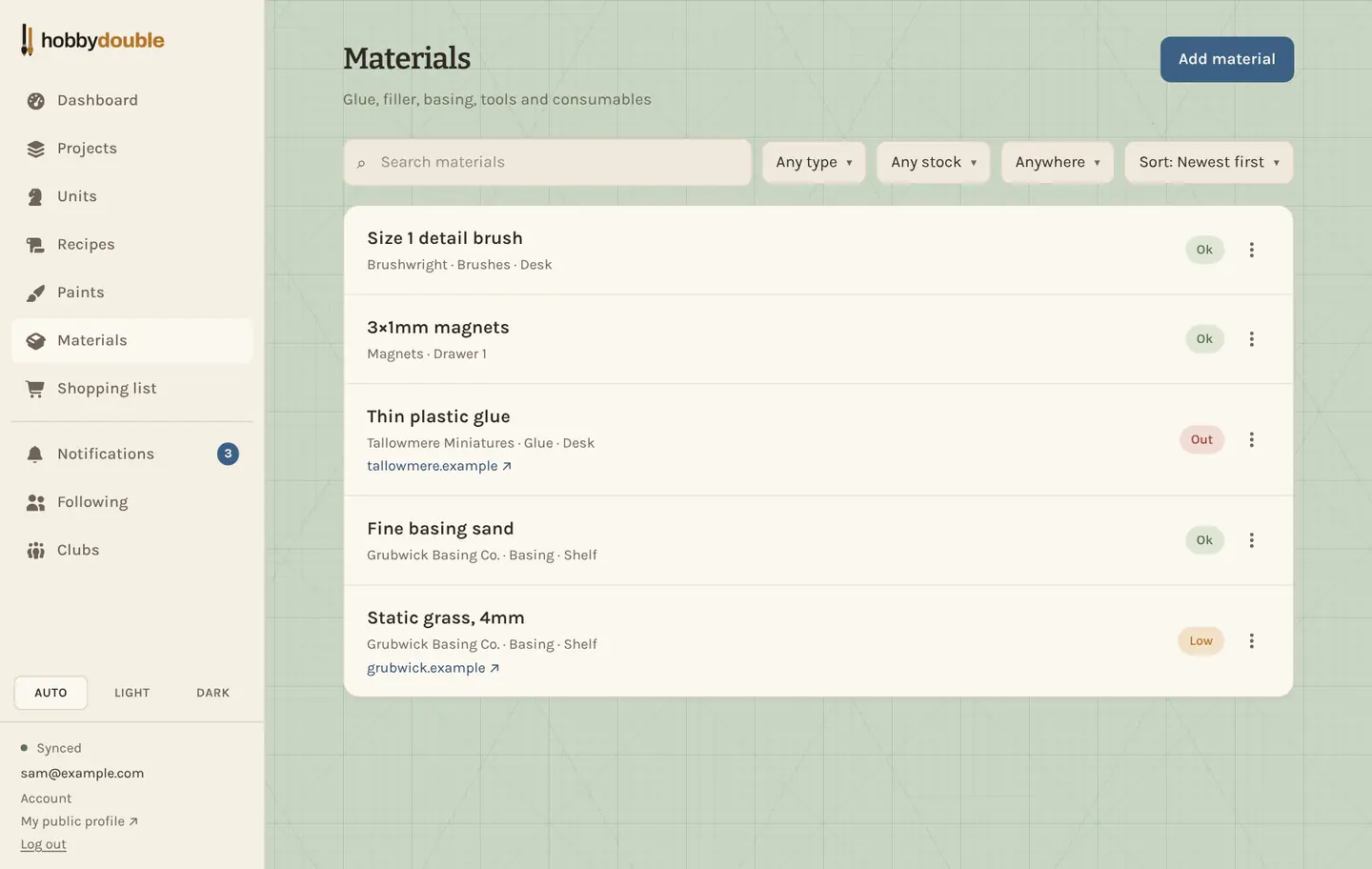
Screenshots show a sample account. Every name in them, from units and factions to paint brands and shops, is made up for these guides.