Clubs
Give your club, Discord or painting group a page full of its members' work.
A club is a painting group with a page of its own at my.hobbydouble.com/c/club-name: a local club, a group chat, a few friends painting the same campaign. The page shows the work its members share with it. Members keep their projects; the club only shows them.
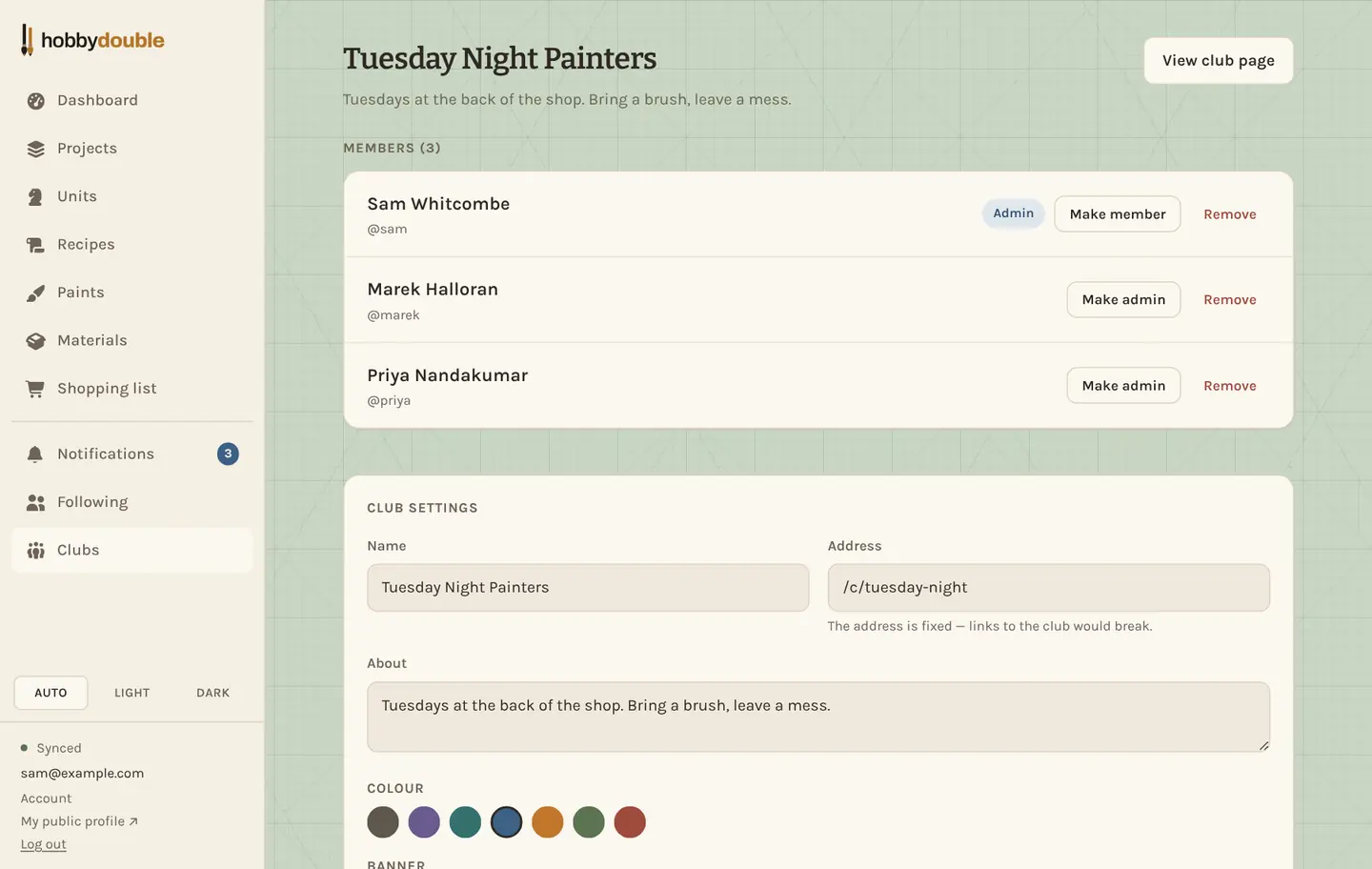
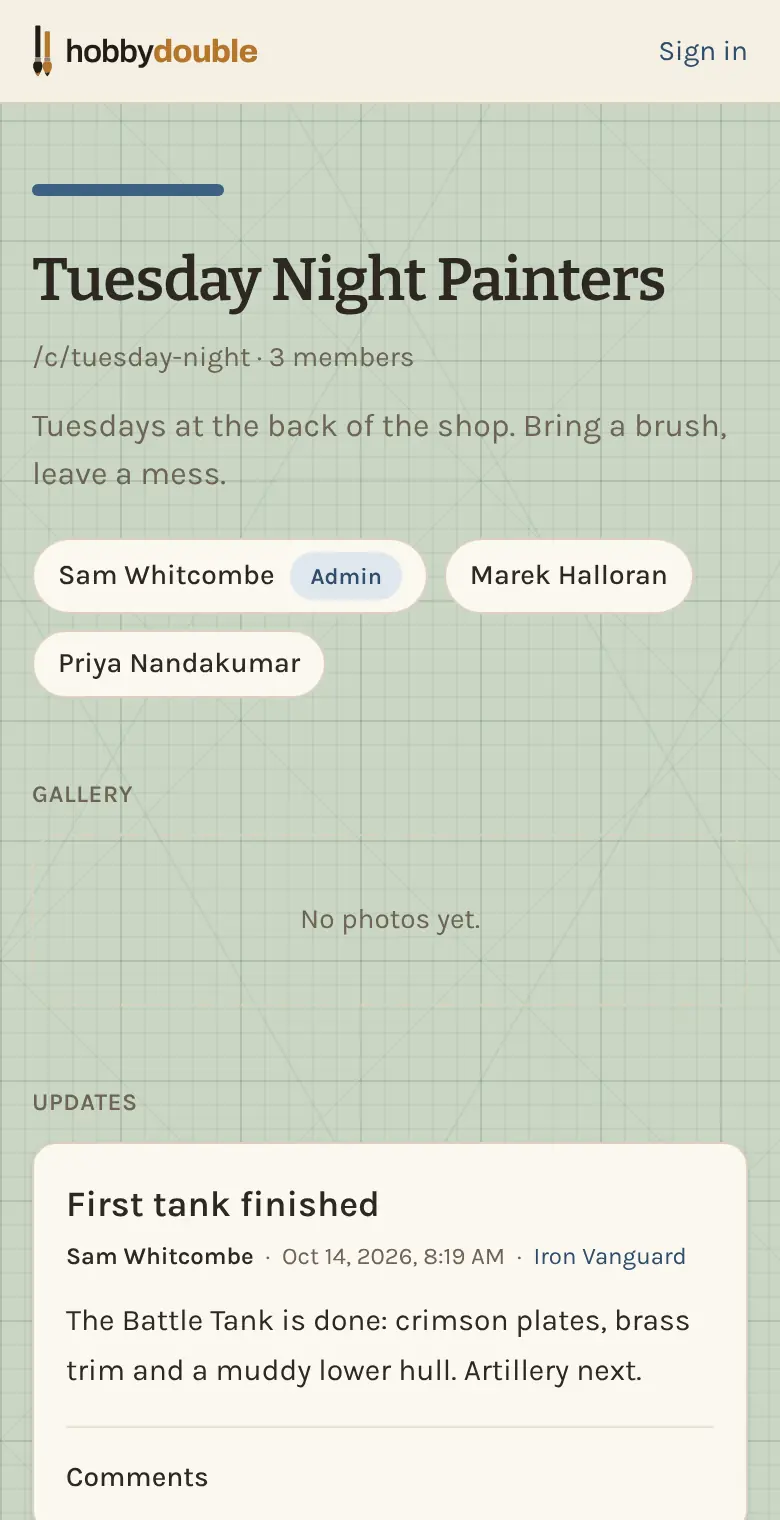
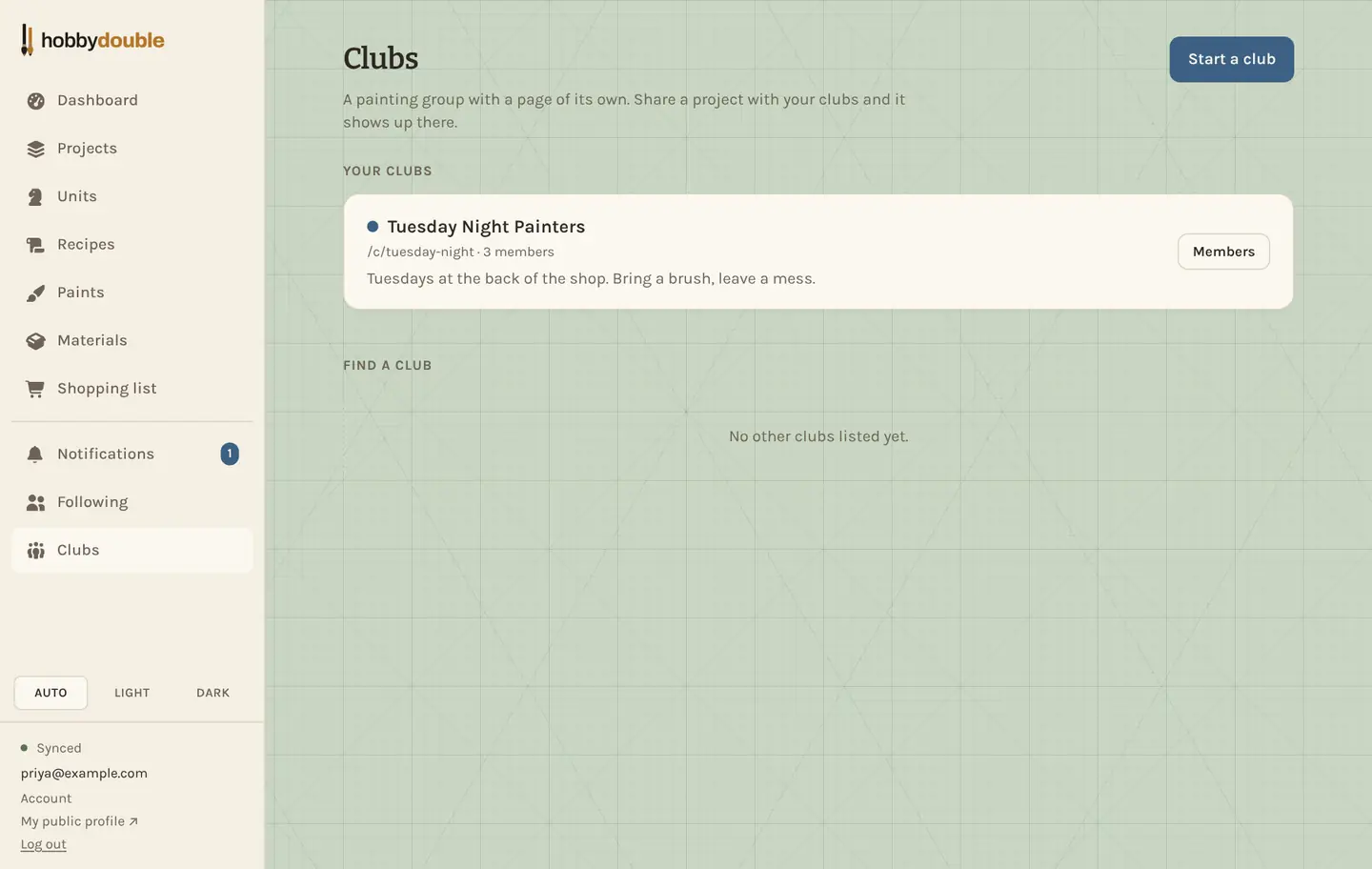
Start a club
- Open Clubs and press Start a club.
- Choose a name and an address. The address cannot be changed later, as links to the club would break.
- Add a short description, pick a colour and, if you like, upload a banner. Untick List in the club directory if you only want people with the link to find it.
Join a club
Find the club under Find a club on your Clubs page, or open its page from a link, and press Ask to join. The club's admins get a notification and approve or turn down the request. Once you are in, the club shows on your Clubs page.
Share your work with a club
On a project's Settings tab, tick Share with my clubs. It then shows on the page of every club you belong to. Untick it, or leave the club, and it comes off straight away. When you post a project update you can also choose to post it to your clubs.
Running a club
Admins see people Waiting to join with Approve, Reject and Block, the member list where anyone can be made an admin or removed, and the club's settings. A club can have several admins. Leaving or deleting a club never deletes anyone's projects.
Screenshots show a sample account. Every name in them, from units and factions to paint brands and shops, is made up for these guides.