Photo feedback
Ask what's working on a model, and what would lift it further.
Open any photo of your painting and ask the assistant what's working and what would lift it further. The tips are pitched at the kind of painter you are, so an army painter isn't told to spend a week blending a cloak.
Photo feedback is part of the Assistant beta. If you can see Assistant in the menu, you can use it.
Tell it what kind of painter you are
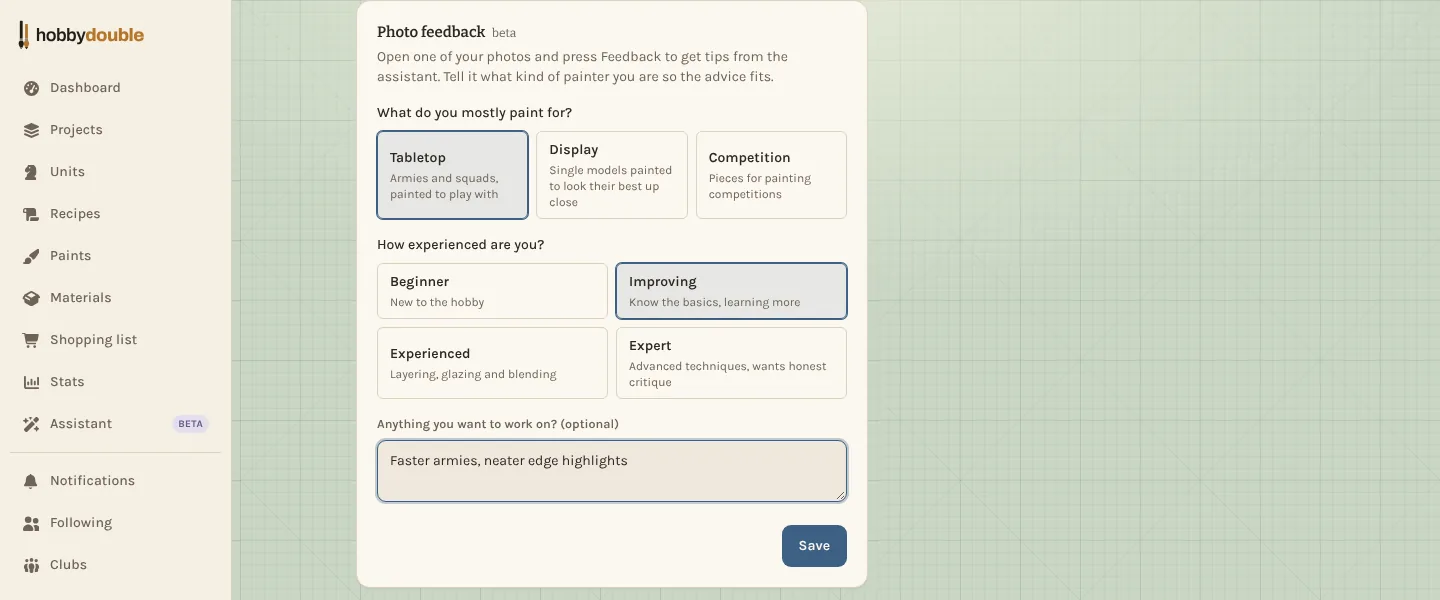
- Open Account and find Photo feedback.
- Choose what you mostly paint for: Tabletop (armies and squads, painted to play with), Display (single models to look their best up close) or Competition.
- Choose how experienced you are, from Beginner to Expert.
- Optionally, say what you want to work on, such as "neater edge highlights", then press Save.
Until you choose, feedback assumes tabletop and improving.
Get feedback on a photo
- Open a photo you've added to a unit, project or update.
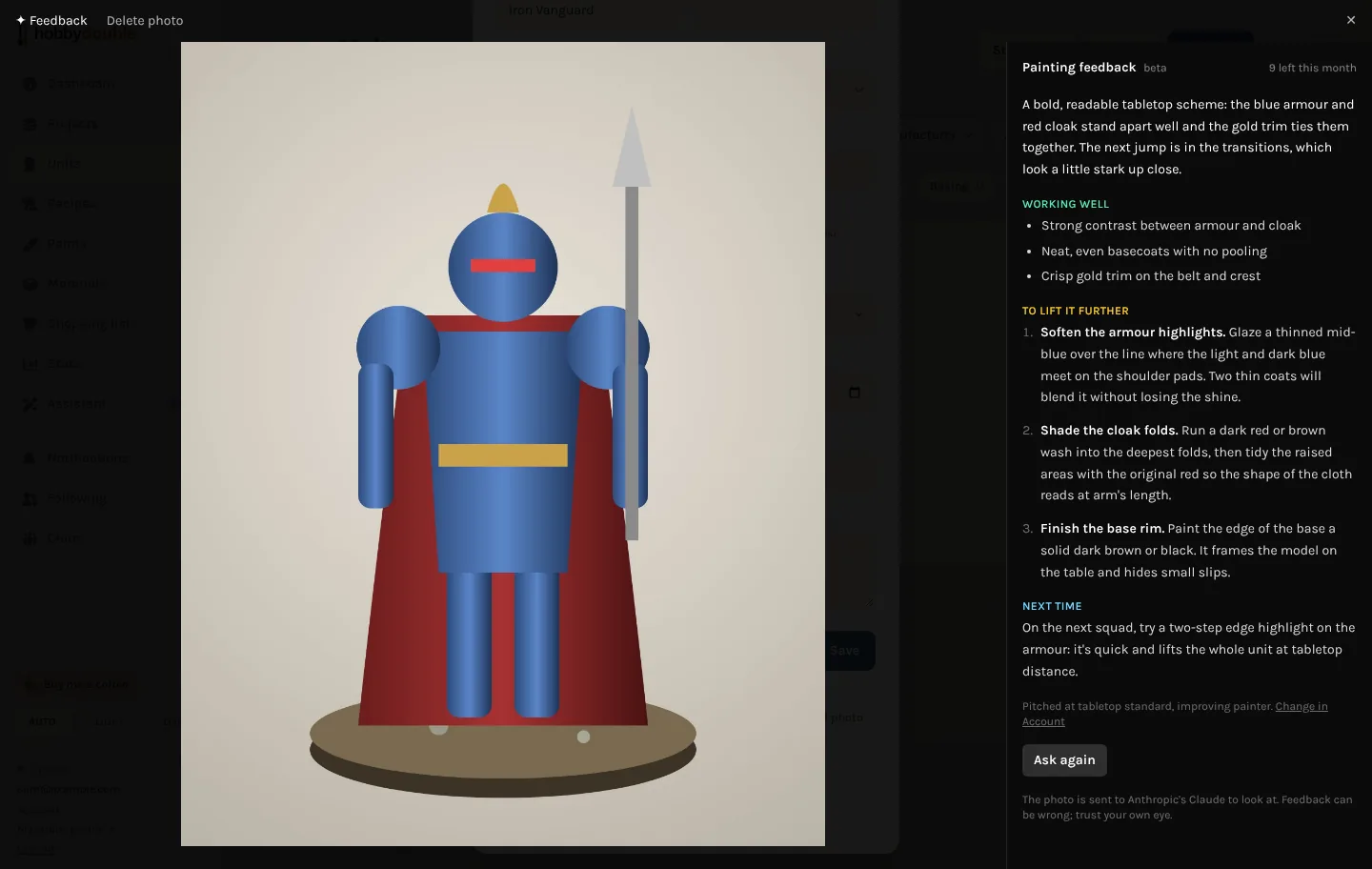
- Press ✦ Feedback at the top of the photo, then Get feedback.
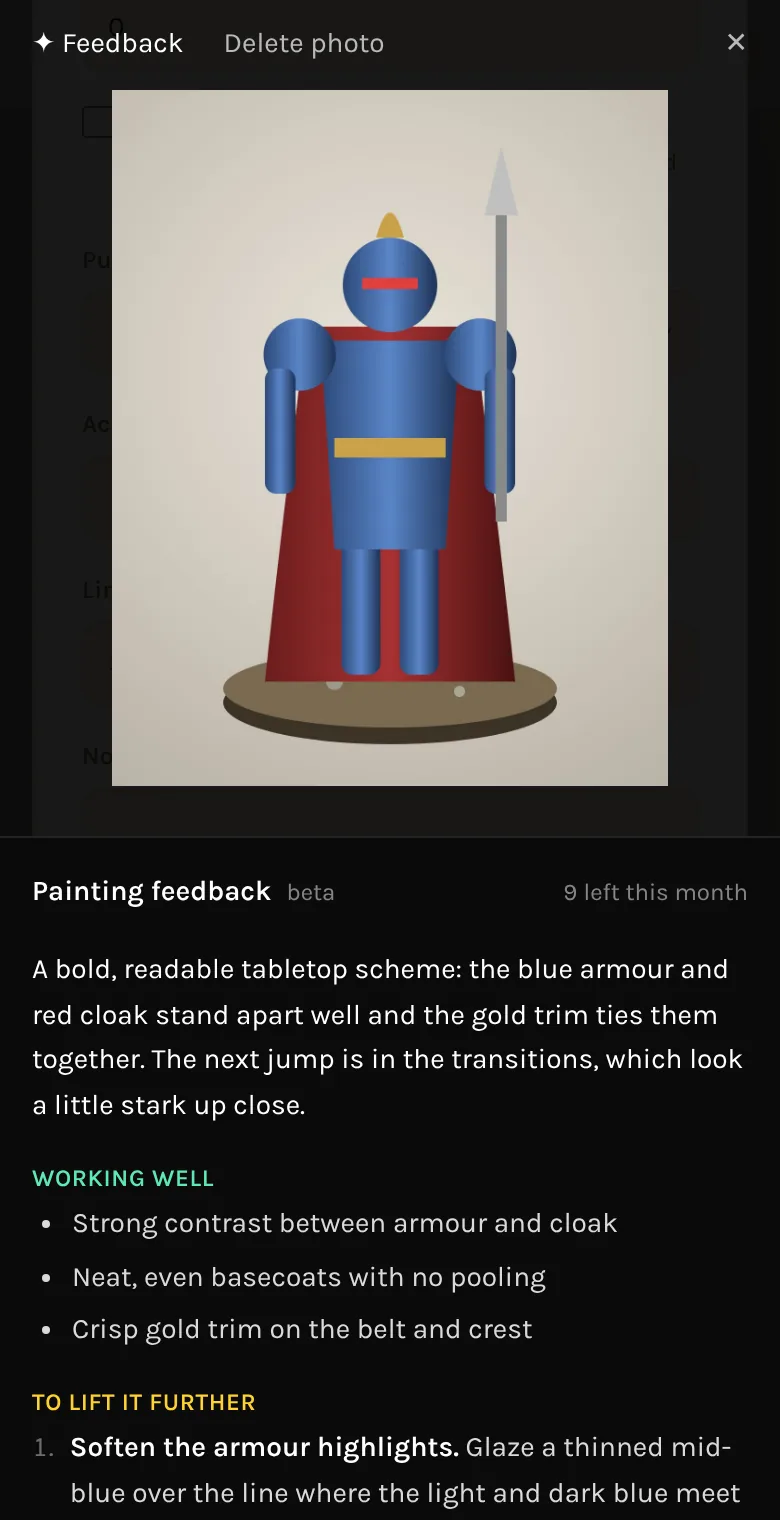
- After about twenty seconds you get a short summary, what's working well, the three changes that would lift it most, and one thing to try on your next model.
It's kept with the photo
The feedback is saved, so opening the photo and pressing ✦ Feedback again shows it straight away. Press Ask again only when you want a fresh look, say after changing your settings.
Limits and tips
- Each account gets a number of feedback requests a month, shown at the top of the panel. Seeing saved feedback doesn't use one.
- It works on your own photos only, not other people's.
- A sharp, well-lit photo against a plain background gets the most useful feedback.
- The photo is sent to Anthropic's Claude to look at, as set out in the Privacy Policy. Feedback can be wrong, so trust your own eye.
Screenshots show a sample account. Every name in them, from units and factions to paint brands and shops, is made up for these guides.